
Window Peeper Template: CapCut Link and One-Photo Option
Find the Window Peeper CapCut template workflow, learn how to identify the right preview, and compare it with the one-photo AI option.
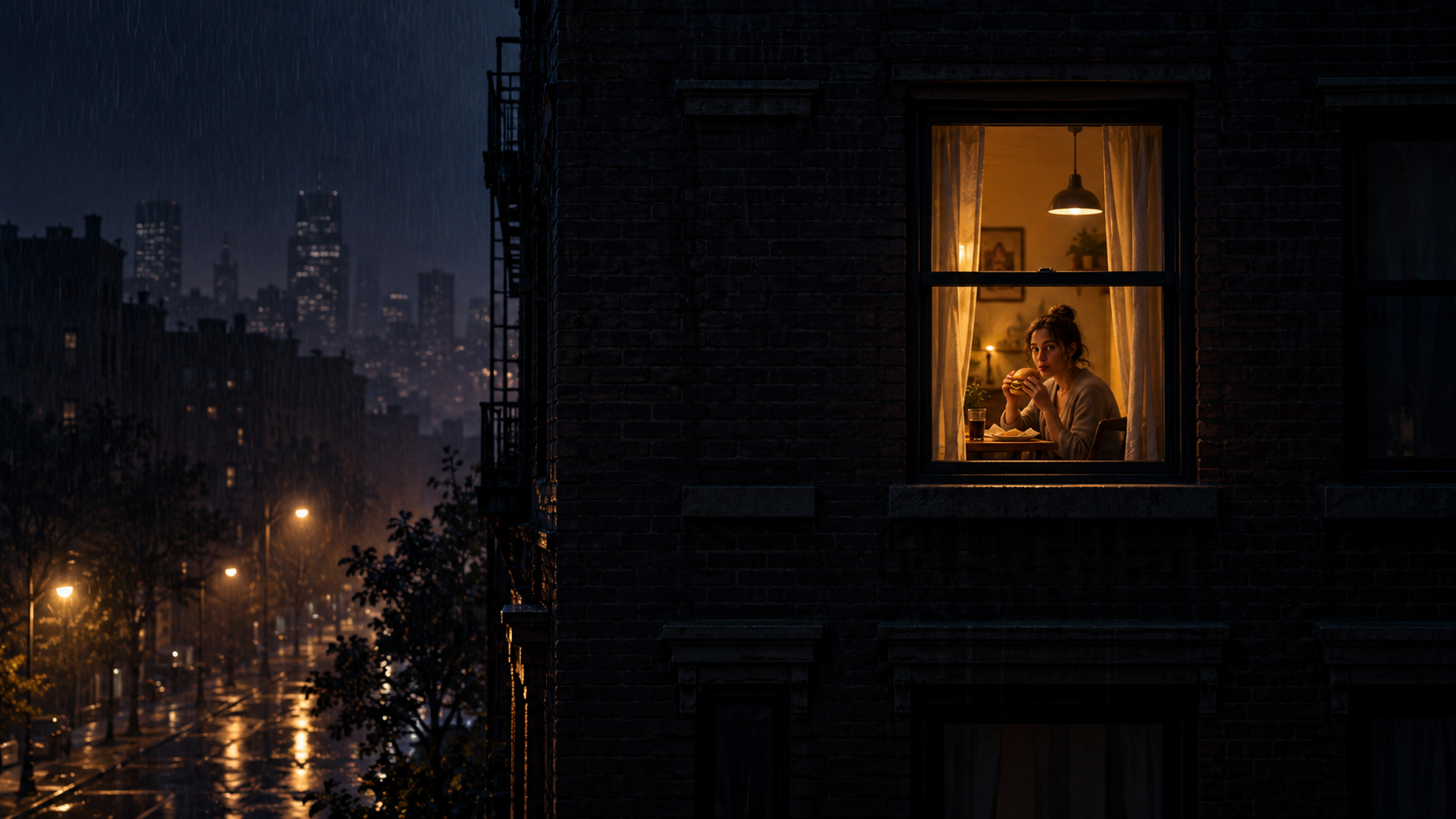
The Window Peeper template is the editable route to the night-window trend. Its recognizable version starts outside a dark apartment building, approaches one lit room, catches the person inside staring back while eating, and finishes when the curtains close.
If you are searching for a Window Peeper CapCut template, start with the current CapCut reference listing. Watch the entire preview before adding a photo because similarly named templates can use a different scene, duration, or set of media slots.
How to recognize the right Window Peeper template
Check the visual story rather than the title alone. A matching preview should contain these three beats:
- Building approach: the camera begins outside at night and moves toward one warm window.
- Window stare: the person inside notices the camera and holds direct eye contact, usually while eating.
- Curtain close: the subject ends the awkward moment by shutting the curtains.
You may also see the same idea described as a Window Watch template, window burger template, AI zoom apartment, or Window Peeper filter template. Those names are useful search variations, but the three-beat preview is the more reliable identity check.
How to use the Window Peeper CapCut template
The exact buttons and media slots can change, but the basic route is short:
- Open the live template listing on a phone with CapCut available.
- Play the preview and confirm the building, stare, and curtain ending.
- Choose Use template in CapCut.
- Add the photo or media requested by the current listing.
- Review the crop and the final stare before exporting.
A template reuses the timing and visual material defined by its creator. That makes it convenient when the preview is already the exact edit you want. It also means the room, outfit, food, duration, and framing may be fixed by that particular template.
Window Peeper template link not working
A Window Peeper template link may open differently across devices or regions. Try these checks:
- Open it on a phone instead of an in-app desktop browser.
- Make sure CapCut is installed and updated.
- If the page opens to a generic template screen, search the title again inside CapCut.
- Compare any replacement preview with the three story beats above.
If the listing is unavailable or no longer matches the trend, you do not need to keep searching for another copy. The one-photo route creates the whole sequence directly in a browser.
CapCut template or one-photo AI?
Choose the CapCut template when you want that exact template preview or plan to continue editing captions, sound, and timing. Choose Window Peeper AI when you want one clear photo to become a newly generated 15-second, 9:16 MP4 without arranging a timeline.
| Question | CapCut template | Window Peeper AI |
|---|---|---|
| Starting point | The template's live media slots | One JPG, PNG, or WebP photo |
| Scene | Defined by the selected template | Generated night-window sequence |
| Duration | Depends on the listing | Fixed 15 seconds |
| Editing | Continue inside CapCut | No timeline required |
| Output | Depends on export settings | 9:16 MP4 |
Both routes can make a recognizable Window Peeper video. The difference is whether you want to work inside an existing edit or start from your own photo and receive a complete scene.
For a deeper comparison, read Window Peeper AI vs CapCut template. To understand the joke before choosing a workflow, see the Window Peeper trend meaning and effect.
Window Peeper template FAQ
Where can I find the Window Peeper template?
Open the current CapCut listing linked in this guide and check that its preview includes the dark building, the direct stare and the curtain-close ending. If you would rather skip CapCut, the one-photo AI generator creates a new 15-second version in your browser.
Why does a Window Peeper template link not open?
A listing can be renamed, replaced or limited by device or region. Open the link on a phone with CapCut installed, or use the one-photo browser workflow instead.
Is the Window Peeper template a TikTok filter?
Not exactly. TikTok posts often lead viewers to a CapCut template, while other versions are newly generated AI videos. A live camera filter changes the view while recording; the template opens an existing edit.
Can I make the Window Peeper trend from one photo?
Yes. The browser-based generator uses one photo and returns the complete 15-second vertical scene. Follow the one-photo Window Peeper tutorial for the full workflow.
Keep exploring
Related Window Peeper guides
Window Peeper AI vs CapCut Template
Compare a one-photo Window Peeper AI video generator with a Window Peeper CapCut template and choose the right workflow.
Read articleHow-toHow to Make a Window Peeper Video From One Photo
A simple guide to making the Window Peeper trend with one photo, including photo choice, framing, and posting tips.
Read articleTrend guideWindow Peeper Trend: Meaning, Meme and Effect
Learn what the Window Peeper trend means, how the burger-window meme works, and how creators remake the AI window-zoom effect.
Read articlePut the guide into practice
Make your Window Peeper video.
Upload one photo and create the complete 15-second window-zoom moment.